
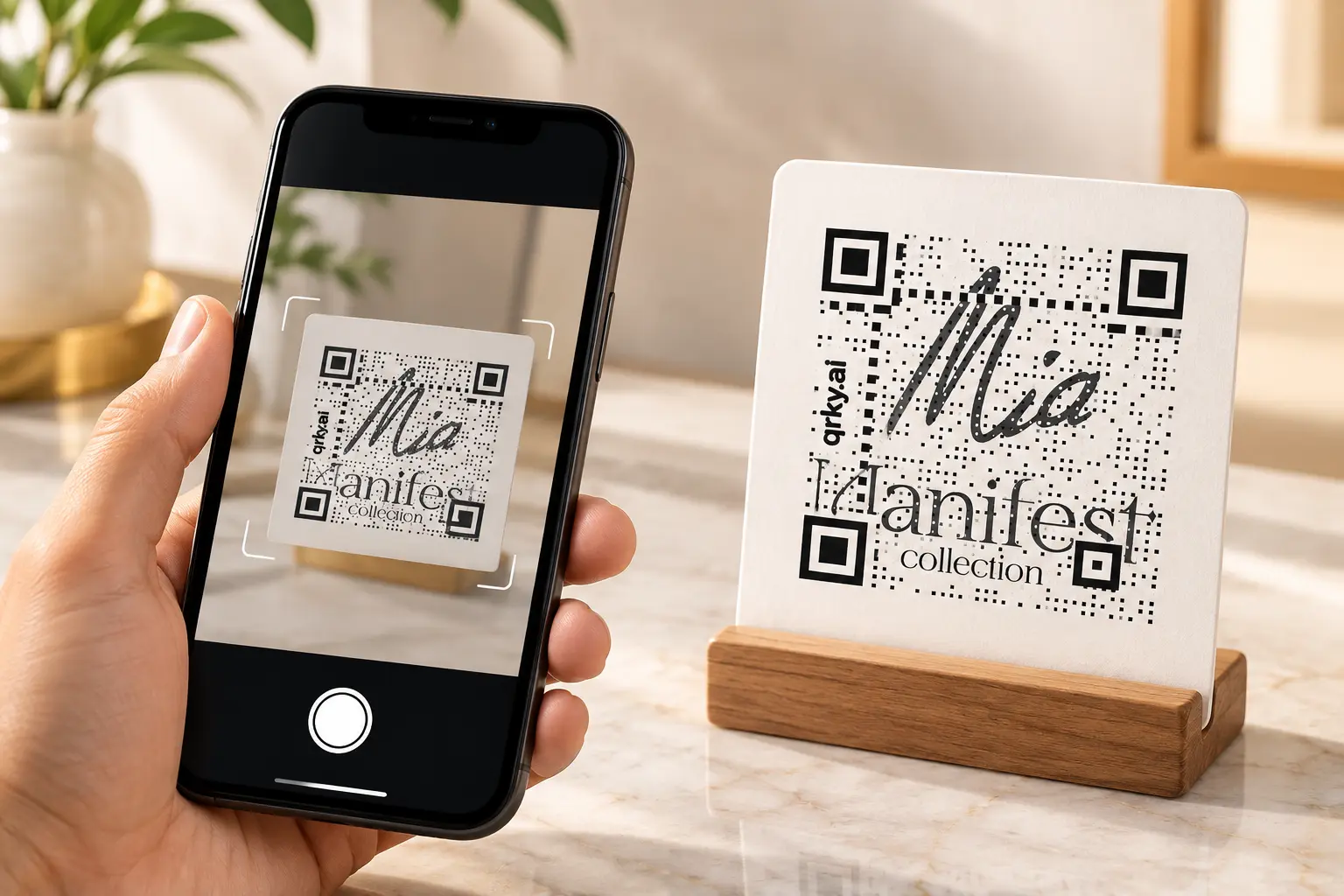
A plain black-and-white QR code works fine, but it rarely looks like it belongs to anyone. Drop a logo in the center and the same code suddenly reads as intentional, almost like someone thought about it instead of just hitting export on a generator.
Here’s the catch: a logo can break the thing it’s sitting on top of. QR codes lean on error-correction data spread through the pattern to stay scannable even when part of it’s covered. Push the logo too big, place it slightly off, skip the white space around it, and a phone just stops reading the code. No warning, no error. It just doesn’t scan.
This guide gets into how a QR code generator with logo support keeps the code working despite the branding, and the settings that matter.
How Does Error Correction Work in QR Codes
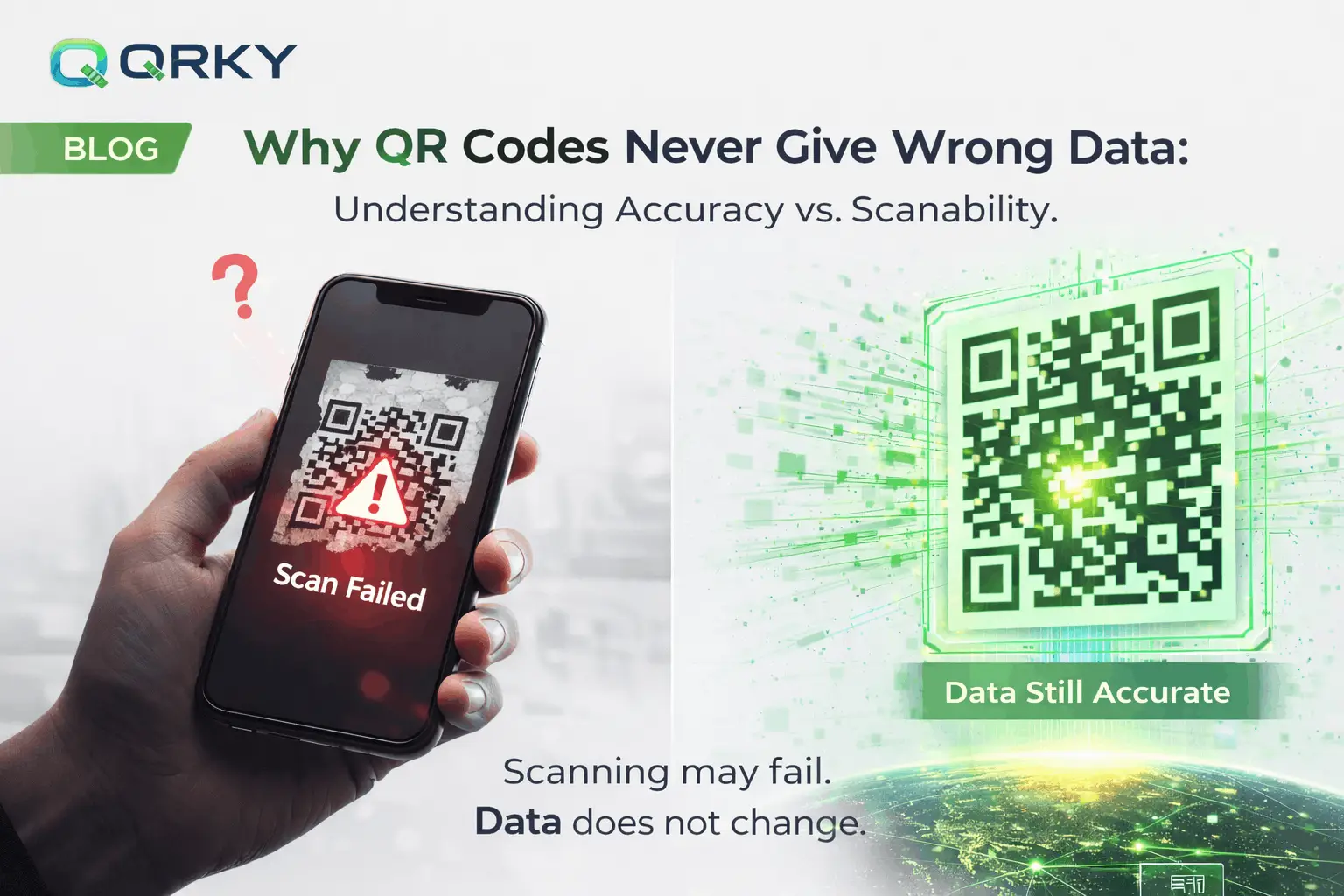
QR codes are built with error correction baked into their design, meaning they can lose a portion of their pattern and still scan correctly. A centered logo covers the area this correction was built to handle.
This isn’t a workaround or a hack; it’s a deliberate feature of the QR code standard itself, originally intended to keep codes readable even when scratched, smudged, or partially obscured by dirt on a warehouse floor. Designers simply repurposed that same tolerance to make room for branding instead.
How Error Correction Makes Logos Possible
Every QR code includes one of four error correction levels, and higher levels tolerate more damage or coverage before the code fails.
| Error correction level | Data recovery capacity | Best for |
| L (Low) | ~7% | No logo, maximum data storage |
| M (Medium) | ~15% | Small logos or light branding |
| Q (Quartile) | ~25% | Logos covering a moderate area |
| H (High) | ~30% | Larger logos or decorative overlays |
How to Create a QR Code with a Logo
Follow these steps in order, since skipping the error correction setting is the single most common reason branded codes fail.
Step 1: Choose a QR Code Generator with Logo Support
Not every tool allows image uploads inside the code. The best QR code generators support logo placement directly in their design panel, alongside color and shape customization for the surrounding pattern.
Step 2: Set the Error Correction Level to High
Before uploading anything, switch the error correction setting to High (H). This gives the code enough redundancy to survive losing up to 30% of its pattern to your logo.
Step 3: Upload Your Logo
Use a square or circular logo with a transparent or solid background, since irregular shapes can confuse the scanning process. Simple logos with clean edges tend to scan more reliably.
Step 4: Keep the Logo Small and Centered
Limit the logo to roughly 20-25% of the total code area, positioned in dead center. Anything larger risks covering the finder patterns, the three corner squares that scanners rely on.
Step 5: Test on Multiple Devices
Scan the finished code on at least two different phone brands before finalizing anything. Some older scanning apps are stricter about logo coverage than newer built-in camera scanners.
Step 6: Download in High Resolution
Export as PNG for digital use or SVG for print materials, since a blurry logo can blend into the surrounding pattern and reduce contrast where it matters most.
What are the Design Rules That Protect Scannability
A logo can sit safely inside a QR code as long as a few core rules stay non-negotiable, regardless of how the rest of the design looks.
- Never cover the three large corner squares, called finder patterns
- Keep strong contrast between the logo and the surrounding code colors
- Avoid transparent logo backgrounds that blend into a busy code design
- Use vector or high-resolution logo files to prevent blurry edges
- Leave a thin white border, sometimes called a quiet buffer, around the logo itself
Common Mistakes That Break Branded QR Codes
Even with high error correction, certain choices reliably cause branded codes to fail in the real world.
- Skipping the high error correction setting before adding a logo
- Sizing the logo too large relative to the overall code
- Choosing a busy, multi-color logo that reduces overall contrast
- Placing the logo off-center instead of directly in the middle
- Never testing the finished code before printing hundreds of copies
Choosing the Right Logo for a QR Code
Not every logo translates well onto a busy pattern of black-and-white squares, even with high error correction switched on. Simple, single-color icons or wordmarks tend to hold up far better than detailed illustrations, gradients, or logos with fine text.
If your brand logo is intricate, consider using a simplified icon version, like just the symbol without the accompanying wordmark, specifically for QR code use. A square or circular crop also blends more naturally into the center of the code than an irregular or elongated shape would.
How Logo Placement Protects Scannability
Upload a logo and a decent tool bumps the error correction up on its own, before you’ve touched a single sizing control. You also get a live preview, which often allows you to drag and resize. As a result, you can actually watch how much of the pattern is still visible instead of resizing blind and hoping for the best.
Whether a code scans on the first try or just sits there failing silently usually comes down to a few percentage points of coverage. Without the preview option, the kind of thing you’d never catch just looking at the finished image on a screen.
Testing Your Logo QR Code Before It Goes Live
A quick visual check on screen isn’t enough to guarantee a logo QR code will scan reliably once it leaves the design panel. Print a physical sample at the actual intended size, then test it under normal room lighting rather than a bright screen, since screens are far more forgiving than paper.
Try scanning from a slight angle and from the typical distance someone would stand, not just straight-on and up close. If it fails under any of these conditions, reducing the logo size slightly or increasing error correction usually solves the problem quickly.
Logo QR Codes on Different Materials
The material a code gets printed on changes how forgiving it can afford to be with logo placement and size.
Business cards and small labels leave little room for error, so keeping the logo modest in size matters even more there than on a large poster. Glossy materials also reflect light differently than matte paper, which can make an already-tight contrast ratio worse under certain lighting.
Testing a printed sample on the actual material, not just a screen preview, catches problems that are otherwise easy to miss until it’s too late to fix cheaply.
Wrapping Up: A Logo Doesn’t Have to Cost You Scans
A branded QR code makes marketing materials look deliberate instead of generic, and it costs nothing extra beyond a few careful settings. High error correction, a small centered logo, and a proper test scan cover almost every failure point.
QRKY’s built-in logo tool applies sensible defaults automatically, so branded codes come out scannable on the first try.
Frequently Asked Questions
Can I add a photo instead of a logo to my QR code?
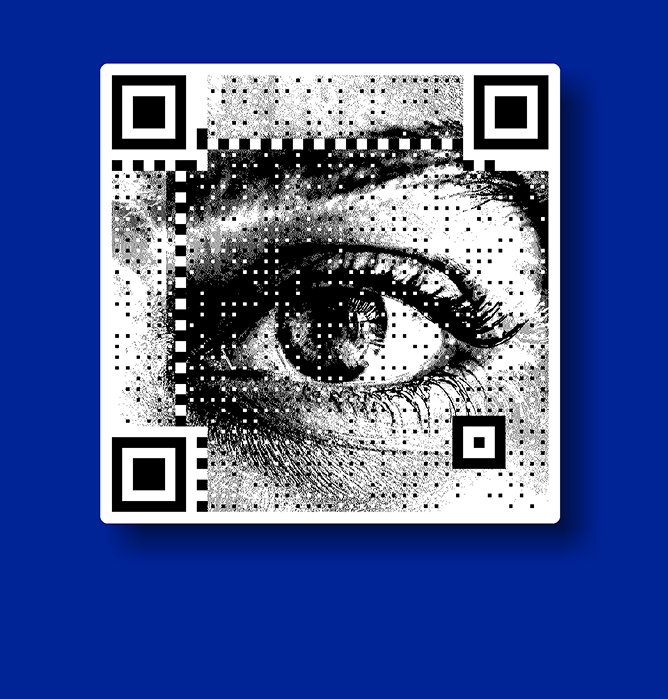
Yes, many generators, including QRKY, support photo backgrounds or overlays alongside a traditional logo. The same error correction and contrast rules apply here, since photos add noticeably more visual complexity than a simple flat logo.
Does adding a logo make the QR code slower to scan?
Slightly, since the scanner processes a bit more visual noise around the logo area. In practice, this delay is barely noticeable, usually under a second, as long as error correction and contrast are set correctly.
What file format works best for uploading a logo?
PNG files with transparent backgrounds generally work best, since they preserve sharp edges without adding unwanted white boxes around the logo. SVG files also work well if your chosen generator accepts vector formats directly.
Can I use my company’s exact brand colors in the code pattern itself?
Yes, most generators let you recolor the code’s foreground and background, not just the logo itself. Keep the darkest shade for the pattern, since low contrast between colors reduces scan reliability significantly on most devices.
Will a logo QR code still work if printed in black and white?
It should, as long as contrast between the logo and the surrounding pattern stays strong in grayscale too. Test a printed black-and-white version separately, since colors that contrast well on screen sometimes flatten out on paper.