
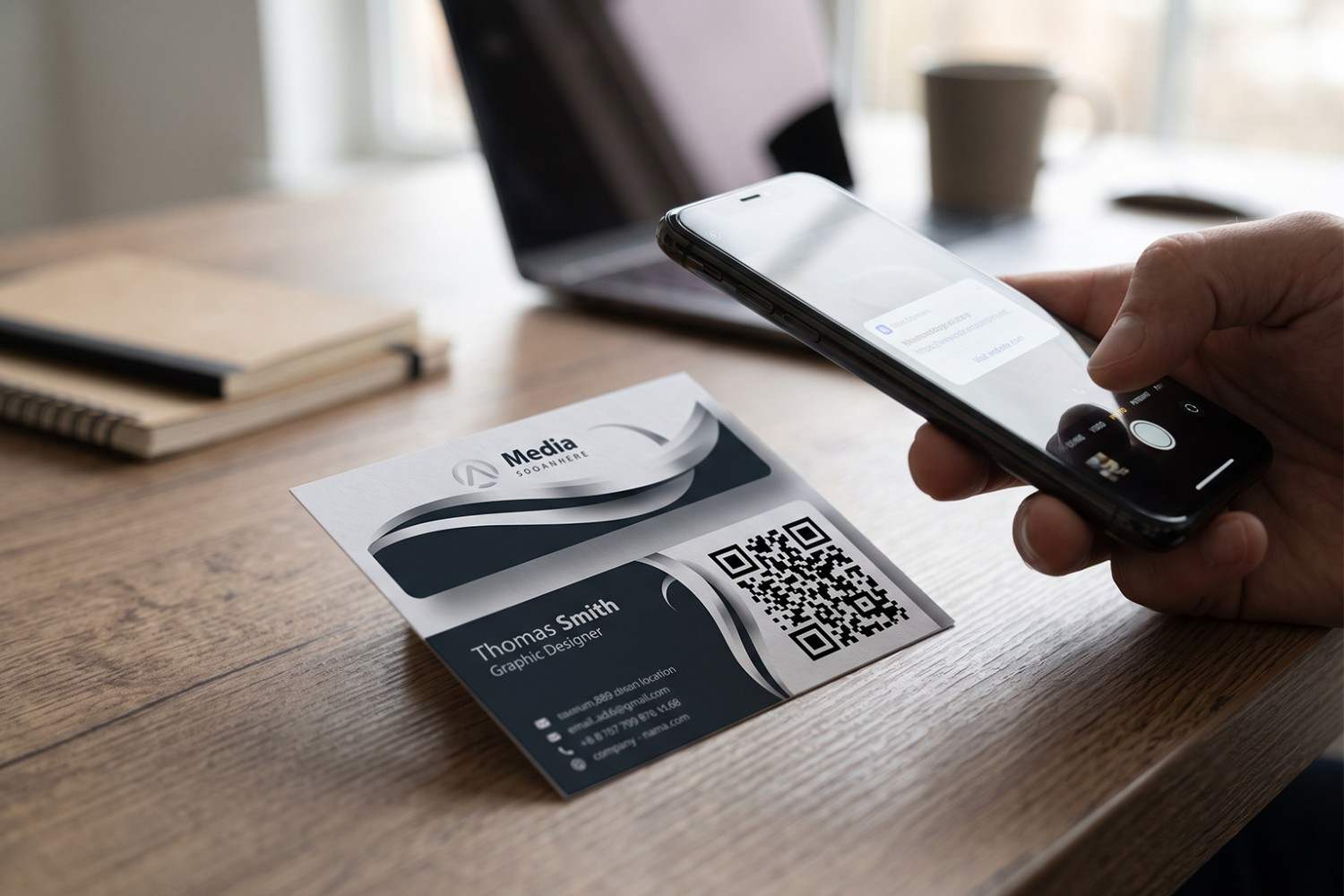
A business card does not have to end with a name, phone number, and email address printed on paper. Adding a QR code for a business card gives people another way to save contact information without typing everything manually.
One scan can take someone to a digital contact profile, website, portfolio, social profile, or another destination. That makes the physical card a useful bridge between an in-person introduction and the digital information that follows.
The trick is keeping the experience simple. A QR code should make exchanging details easier, not turn a straightforward introduction into another complicated step. This guide explains how business card QR codes work, what they can contain, and how to create one that is practical and professional.
What Is a QR Code for a Business Card?
A QR code for a business card is a scannable code printed on a physical or digital business card. When someone scans it, the code can open a digital destination containing contact information or other relevant details.
The destination might be a digital business card, contact-saving page, professional profile, company website, portfolio, booking page, or social media profile.
This gives the recipient more than the information that can comfortably fit on a small printed card. It also means the card can become an entry point to a broader professional presence.
How Does a Business Card QR Code Work?
The process is straightforward. A QR code is generated for a chosen destination and added to the business card design. The recipient scans the code using a smartphone camera or QR scanner.
If the code links to a digital contact page, the recipient can view details such as the person’s name, company, phone number, email address, website, and other information provided there.
The exact experience depends on the destination. A simple URL can open a webpage, while a digital business card platform may offer additional options for saving or sharing contact information.
Why Put a QR Code on a Business Card?
Traditional business cards are useful because they make contact information easy to exchange. Their limitation is that recipients usually have to type those details into their phone later.
A QR code can remove that extra step and create a more direct connection between the physical card and digital information.
Here are some of the practical advantages:
- Faster contact sharing: Recipients can access your details without manually typing every field.
- More information: A digital destination can contain more details than a physical card.
- Fewer typing errors: Scanning reduces the chance of incorrectly entering a phone number or website address.
- Easy updates: A dynamic QR setup can let you change the destination without redesigning the printed card.
- Additional digital touchpoints: The same scan can connect people with websites, portfolios, booking pages, or professional profiles.
What Can a Business Card QR Code Link To?
The right destination depends on what you want people to do after meeting you. A business card QR code does not have to lead to your homepage simply because that is the easiest option.
Digital Contact Card
A digital contact card can bring your essential details together in one place. Depending on the platform, it may include your name, role, company, phone number, email address, website, and other professional information.
This is one of the most direct uses because the physical card remains a reminder of the meeting while the digital profile makes the information easier to access.
Professional Portfolio
Designers, photographers, architects, consultants, developers, and other professionals can use a QR code to connect their cards with selected work.
Instead of trying to describe your experience within the limited space of a printed card, the scan can take someone directly to your portfolio.
Company Website
A business card can also connect the recipient to a company’s website. This works particularly well for sales teams, founders, consultants, and professionals who want to introduce both themselves and their organization.
Booking or Appointment Page
Service professionals can use a QR code to make the next step more direct. The code could open a booking page where a potential customer can schedule a consultation, appointment, meeting, or demonstration.
Social and Professional Profiles
Depending on the audience, a QR code can connect to LinkedIn, a professional profile, or other relevant social channels. Keep the destination focused rather than sending people to a page containing too many unrelated options.
Static vs Dynamic QR Codes for Business Cards
A static QR code can work well when the destination is permanent. However, business details often change over time, which makes flexibility useful.
| Factor | Static QR code | Dynamic QR code |
| Destination updates | Not normally possible | Possible |
| Reprinting after a URL change | Usually required | Usually unnecessary |
| Scan analytics | Generally unavailable | Often available |
| Best for | Permanent destinations | Changing professional information |
| Long-term flexibility | Limited | Higher |
Imagine changing your portfolio URL after a website redesign. With static code, previously printed cards would still point to the old address. A dynamic setup can let you update the destination while keeping the same QR code on existing cards.
How to Create a QR Code for a Business Card
The process takes only a few steps, but the destination deserves as much attention as the code itself.
Step 1: Decide What You Want to Share
Start by identifying the information or action you want the recipient to access. A contact profile may be best for networking, while a portfolio or booking page may make more sense for a service professional.
Avoid sending people somewhere simply because it is available. The scan should have a clear purpose.
Step 2: Prepare the Digital Destination
Make sure the destination works properly on a mobile phone. If you are using a digital business card, check that the contact details are accurate and that important actions are easy to find.
Keep the page concise. Someone scanning a business card generally wants useful information quickly rather than a complicated website journey.
Step 3: Choose a Business Card QR Code Generator
Select a generator that supports the type of destination you need. If you expect your contact information or digital profile to change, consider a dynamic QR option.
A good generator should also provide customization options so the code can fit naturally into your existing card design.
Step 4: Customize the QR Code
You can add brand colors, a logo, or a simple frame where supported. Keep the visual treatment consistent with the rest of the card.
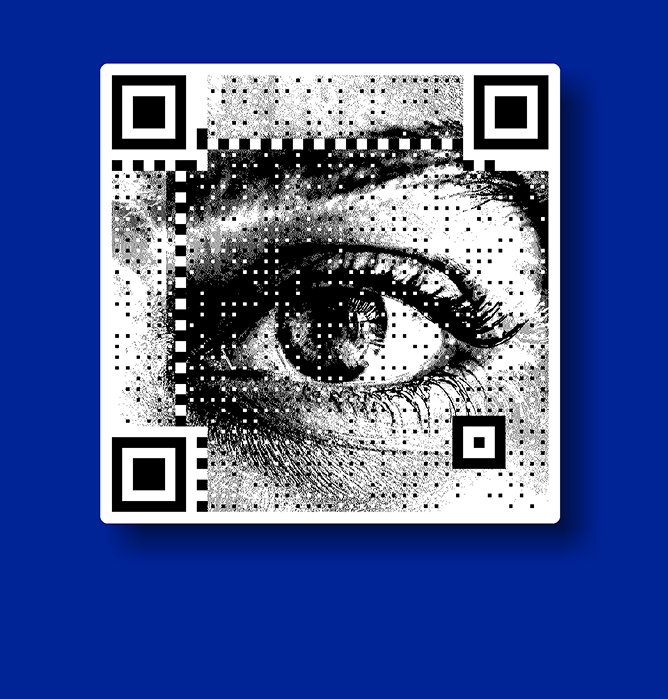
Avoid making the QR code so decorative that it becomes difficult to recognize or scan. The code still needs enough contrast and clear surrounding space.
Step 5: Test the Code
Scan the code from the printed card using multiple phones. Check that the page opens quickly and that every important detail is accurate.
Also test the code at its final printed size. A QR code that works perfectly on a computer screen may not behave the same way when reduced for a small business card.
Step 6: Print and Share
Once the code works reliably, add it to the final business card design. Keep the placement consistent and make sure the code has enough room around it.
The recipient should be able to identify the code and understand what happens after scanning.
Where Should You Put a QR Code on a Business Card?
There is no single correct position. The choice depends on the overall design and the amount of information already appearing on the card.
The back of the card is often useful because it provides more space for the QR code without competing with essential contact details on the front.
You can also place a smaller code beside a clear call-to-action, such as “Scan to save my contact” or “Scan to view my portfolio.” The wording tells recipients why scanning is worthwhile.
Avoid placing the code over photographs, textured graphics, or other elements that reduce contrast.
How to Make a Business Card QR Code More Effective
A QR code works best when recipients immediately understand its purpose. A blank code sitting beside contact details may not provide enough context for someone who is unfamiliar with QR interactions.
Use a short call-to-action that explains the benefit. “Scan to save my contact” is more useful than simply placing “Scan here” beside the code.
The destination should also be mobile-friendly. If the page requires excessive scrolling, several clicks, or an account before showing basic information, the convenience of scanning quickly disappears.
Common Mistakes to Avoid
One common mistake is linking the QR code to a general homepage. While this may technically work, it forces the recipient to find the information they actually wanted.
Another problem is using a code that is too small. Business cards have limited space, but shrinking the QR code excessively can make scanning frustrating.
Businesses should also avoid changing a digital destination without checking whether an existing static QR code still points to the right place. This is one reason dynamic QR codes can be useful for professionals who expect their online information to evolve.
Using QR Codes Across Different Networking Situations
A business card QR code can serve different purposes depending on where the introduction takes place. A sales representative may want to share a company profile, while a freelancer may prioritize a portfolio.
At conferences, the code could connect to a professional profile or meeting-booking page. At a client meeting, it could lead to a presentation or case study. At a networking event, a digital contact card may be the most useful destination.
The principle remains the same: make the next step obvious and relevant to the person scanning.
Wrapping Up: Make Every Business Card More Useful
A QR code can turn a traditional business card into a direct connection between a face-to-face introduction and a digital professional presence. It gives recipients a faster way to access information while giving businesses more room to share beyond the limits of printed paper.
Choose a useful destination, keep the design scannable, and test the final card before printing. QRKY’s QR code generator helps businesses create customizable QR experiences that make sharing professional information faster and more flexible.
Frequently Asked Questions
Can a business card QR code save a contact automatically?
A QR code can open a digital contact page or vCard containing information that can be saved to a phone. Whether the contact saves automatically depends on the device, browser, and destination format. Users may still need to confirm the contact-saving action before it is added.
What size should a QR code be on a business card?
There is no universal size that works for every design, because scanning depends on factors including printing quality, contrast, viewing distance, and the encoded data. Test the finished card at its actual size rather than relying only on screen previews before printing.
Can I use the same QR code on multiple employees’ business cards?
Yes, although the best setup depends on how the information is organized. Companies can use separate codes for individual profiles or create a shared destination where recipients choose the relevant employee. Separate dynamic codes can provide greater control over individual updates and tracking.
Can a QR code on a business card expire?
A static QR code does not inherently have an expiration date. However, the destination can stop working if its webpage is removed or changed. Dynamic QR codes may also depend on the provider maintaining the redirect service, so businesses should review their platform terms.
Can I track who scans my business card QR code?
Some dynamic QR platforms provide scan analytics such as scan volume, timing, approximate location, or device information. These metrics generally describe scanning activity rather than identifying individual people. Check the platform’s privacy practices and applicable data requirements before using analytics.