
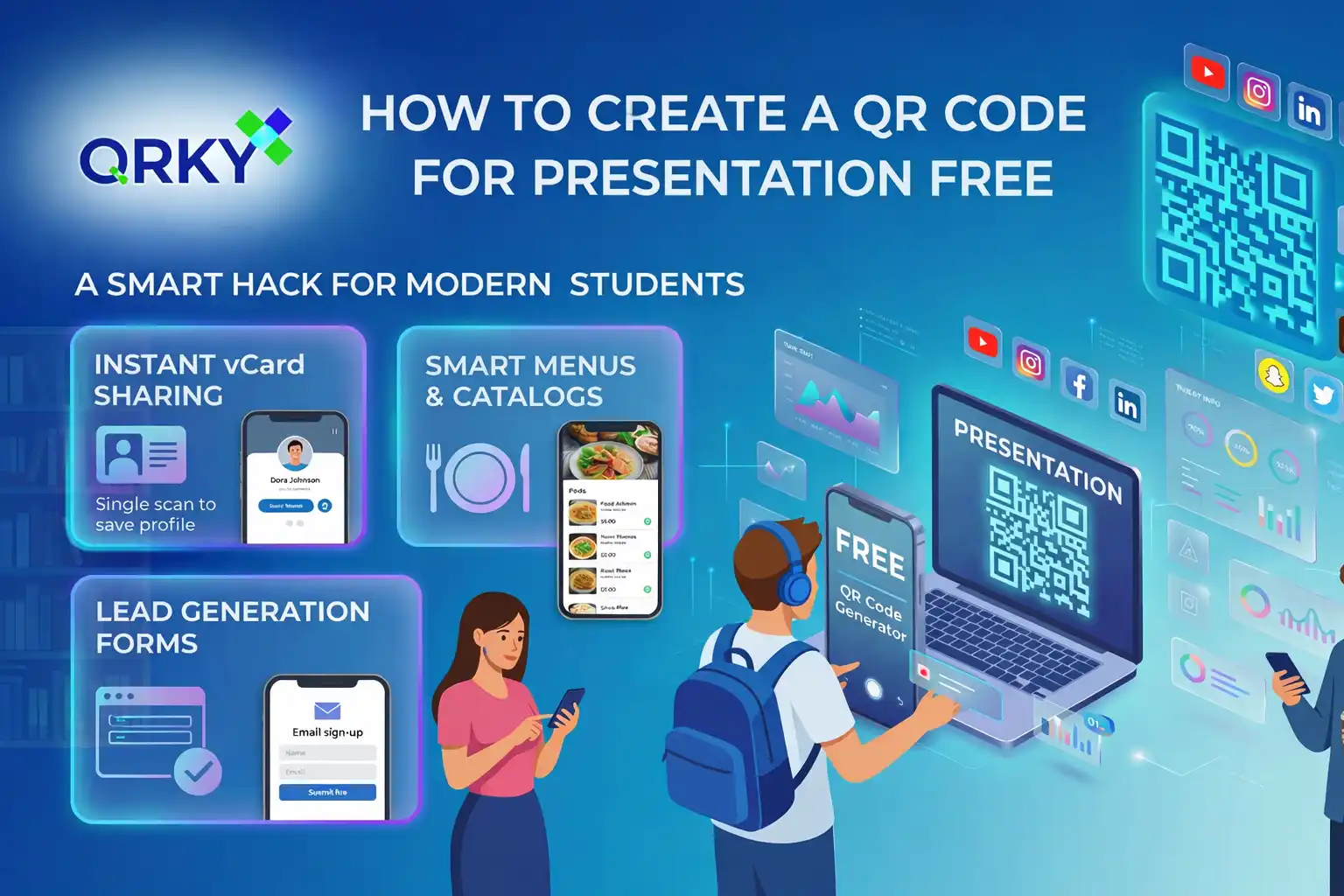
Presentations today are no longer limited to slides and spoken explanations. Audiences expect quick access to extra information, supporting research, and interactive elements that make the topic easier to explore.
One simple tool that can make a presentation more powerful is a QR code.
By adding a QR code to your slides, you can instantly connect your audience to videos, detailed reports, portfolios, or research sources. Instead of crowding slides with long links or extra text, viewers can simply scan and access everything directly on their phones.
This is why many students are now turning to a QR code generator for students as a smart way to enhance their presentations. It keeps slides clean, improves engagement, and makes it easier to share valuable resources with professors and classmates.
Let’s explore how you can create a QR code for your presentation for free and use it effectively.
Why QR Codes Are Useful in Student Presentations
During presentations, students often face a common challenge. There is too much information to fit into a limited number of slides.
You might want to share:
- Detailed research documents
- Project demonstrations
- Data sets or survey results
- Portfolio links
- Reference articles
Adding all of these directly into slides can make them crowded and difficult to follow.
QR codes solve this problem.
A simple scan allows your professor or classmates to access additional material instantly. This keeps your slides clean while still offering deeper insights into your work.
What You Can Link Through a QR Code
A QR code can connect your presentation to almost any type of digital content.
Here are some common uses for student presentations:
Project Documentation
If your project has multiple files, you can link a QR code to a shared folder containing all supporting documents.
Video Demonstrations
Many projects require a demonstration. Instead of embedding long videos in slides, you can link a QR code to a video explanation or recorded demo.
Research References
A QR code can provide access to research papers, articles, and sources used in your project.
Portfolio or Website
Students in design, media, or technology courses can use QR codes to link to their personal portfolio websites.
Surveys or Feedback Forms
If your presentation includes research or audience interaction, a QR code can link to a feedback form or survey.
How to Create a QR Code for Your Presentation
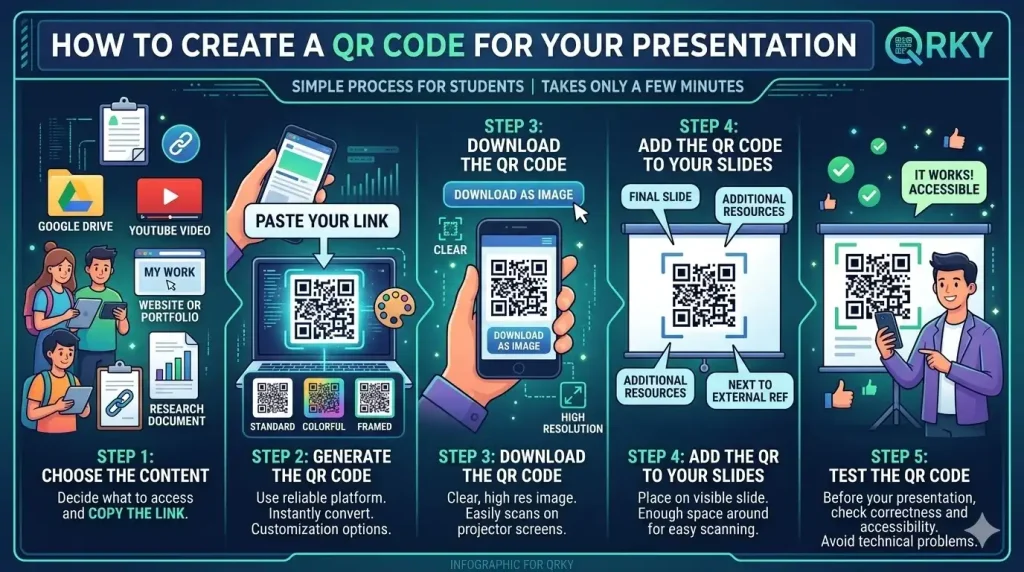
Creating a QR code is simple and takes only a few minutes.
Students can use a QR code generator for students to generate a code quickly.
Step 1: Choose the Content
Decide what you want people to access when they scan the QR code.
This could be:
- A Google Drive folder
- A YouTube video
- A website or portfolio
- A research document
Copy the link.
Step 2: Generate the QR Code
Use a reliable platform like QRKY.
Paste your link into the generator, and the platform will instantly convert it into a QR code.
A stylish QR code generator can also help customize the appearance of the QR code so it matches the design of your slides.
Step 3: Download the QR Code
Download the QR code as an image file.
Make sure the image is clear and high resolution so it scans easily when displayed on a projector screen.
Step 4: Add the QR Code to Your Slides
Place the QR code on a slide where it is easy to see.
Common placement options include:
- The final slide of the presentation
- A slide titled “Additional Resources”
- Next to a section that references external material
Make sure there is enough space around the QR code so people can scan it easily.
Step 5: Test the QR Code
Before your presentation, scan the QR code using your phone.
Check that:
- The link opens correctly
- The page loads quickly
- The content is accessible to others
Testing helps avoid technical problems during your presentation.
Tips for Using QR Codes in Presentations
A QR code works best when it is clear and purposeful. Here are some simple tips.
Add a Clear Instruction
Tell your audience what the QR code is for.
Examples include:
- “Scan to view the project demo”
- “Scan for full research sources”
- “Scan to access the dataset”
This encourages people to scan it.
Keep the Code Large Enough
If your presentation is projected onto a large screen, the QR code should be large enough for people to scan from their seats.
Avoid Overcrowding Slides
QR codes should complement your presentation, not replace the content.
Use them to share additional resources rather than essential information.
Maintain Good Contrast
A dark QR code on a light background scans best.
Avoid placing the code over images or patterned backgrounds.
Why QR Codes Make Presentations Better
Presentations that are organized and interactive tend to leave a stronger impression.
When students include QR codes, they show that they have thought about how their audience will explore the information.
Instead of overwhelming the audience with links and attachments, the information is structured and accessible.
Using a QR code generator for students also helps presentations feel more modern and professional.
Final Thoughts
QR codes are becoming a useful tool for students who want to present their ideas clearly and effectively.
They help connect presentations with supporting materials such as videos, documents, and research sources without making slides complicated.
Platforms like QRKY allow students to create QR codes quickly and easily.
With the help of a stylish QR code generator, students can add interactive elements to their presentations and make it easier for professors and classmates to explore their work.
A simple scan can turn a basic presentation into a richer learning experience.
FAQs
1. How can students create a QR code for presentation free using QRKY?
Students can easily create a QR code for presentation free by using QRKY’s QR code generator for students. They simply paste the link to their document, video, research paper, or portfolio into QRKY, and the platform instantly converts it into a scannable QR code for presentation slides.
2. Why should students use QRKY’s QR code generator for students in presentations?
QRKY’s QR code generator for students helps keep presentation slides clean and organized. Instead of displaying long links, students can add a QR code for presentation that directs viewers to additional resources such as research documents, videos, datasets, or project files with a simple scan.
3. What content can be shared through a QR code for presentation slides created with QRKY?
A QR code for presentation slides created with QRKY can link to various digital resources, including research papers, Google Drive folders, video demonstrations, portfolio websites, and feedback forms. QRKY’s stylish QR code generator also allows students to customize the code to match their slide design.
4. Where should a QR code be placed in a presentation created with QRKY?
When students create a QR code for presentation free using QRKY, it should be placed in a clear and visible location. Common placements include the final slide, an “Additional Resources” slide, or next to sections referencing external materials for easy scanning.
5. How does QRKY’s stylish QR code generator improve student presentations?
QRKY’s stylish QR code generator allows students to customize the appearance of their QR codes so they match the design of their slides. When used for a QR code for presentation, it improves visual appeal while still providing quick access to supporting resources and project documentation.