
Study materials today are no longer limited to textbooks and printed notes. Students regularly use videos, online articles, digital notes, research papers, and collaborative documents to understand topics better. The challenge, however, is organizing all these resources in a way that is easy to share and access.
This is where QR codes can be surprisingly helpful. Instead of sending multiple links or writing long URLs in notes, students can simply create a QR code that connects directly to their study resources.
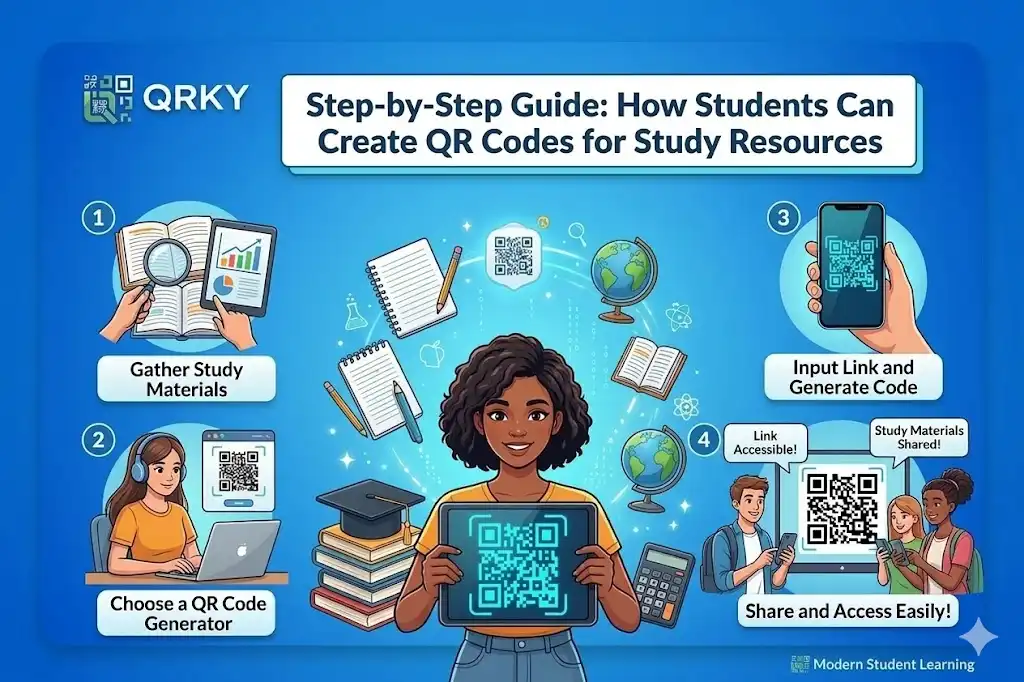
With the help of a QR code generator for students, you can organize and share learning materials instantly. A simple scan can take your classmates to notes, recorded lectures, reference material, or shared folders.
Let’s explore how students can easily create a QR code for their study resources step by step.
Why QR Codes Are Useful for Study Resources
Students often collect study material from different sources during a semester. These can include:
- Lecture recordings
- Research papers
- Online tutorials
- Google Drive folders
- Practice tests
- Shared notes
Sharing these links through messaging groups can quickly become messy and difficult to track.
When you create a QR code for students‘ study materials, everything can be accessed through one simple scan. This makes it easier for classmates, project teams, or study groups to reach the right resource instantly.
QR codes also work well when printed in:
- Study guides
- Assignment sheets
- Presentation slides
- Research posters
What Study Resources Can Be Linked to a QR Code
Before creating a QR code, decide what type of resource you want to share.
Some common examples include:
Lecture Notes
Students can link a QR code to shared notes or documents stored on cloud platforms.
Study Video Tutorials
A QR code can connect classmates directly to video explanations that make difficult topics easier to understand.
Shared Study Folders
Many students create shared folders containing slides, notes, and practice material. A QR code can link directly to that folder.
Practice Tests and Question Banks
Students preparing for exams can share quiz links or mock tests through QR codes.
Reference Articles
QR codes can provide access to additional reading material or research papers used for assignments.
Step-by-Step: How to Create a QR Code for Study Resources
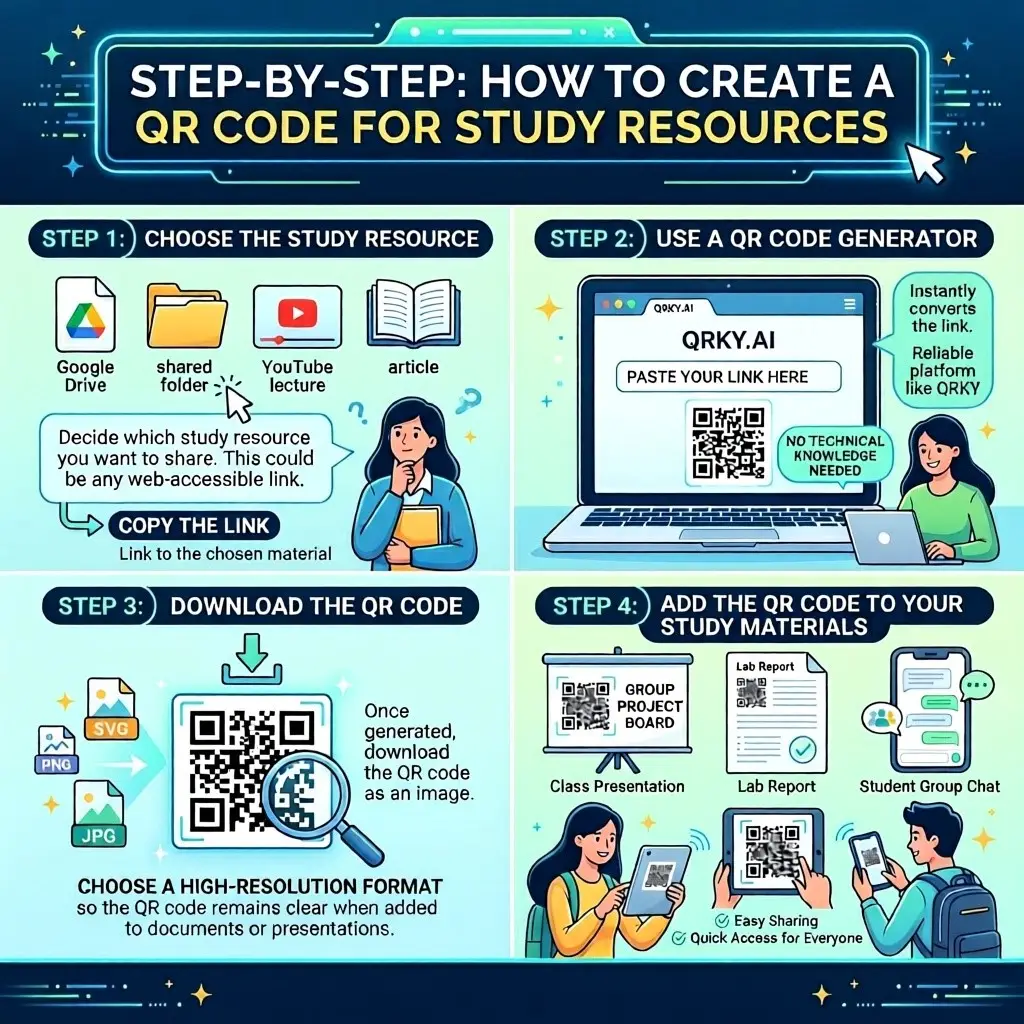
Creating a QR code is quick and simple. Students can use a reliable QR code generator to generate one in minutes.
Step 1: Choose the Study Resource
First, decide which study resource you want to share.
This could be:
- A Google Drive document
- A shared folder
- A YouTube lecture
- An article or research source
Copy the link to that resource.
Step 2: Use a QR Code Generator
Next, open a reliable platform like QRKY.
Paste the link into the generator. The platform will instantly convert the link into a QR code.
This allows students to create a QR code for their study resources without any technical knowledge.
Step 3: Download the QR Code
Once generated, download the QR code as an image.
Choose a high-resolution format so the QR code remains clear when added to documents or presentations.
Step 4: Add the QR Code to Your Study Materials
Now place the QR code where students can easily see it.
Common places include:
- Study guides
- Assignment sheets
- Group notes
- Presentation slides
- Research summaries
This ensures classmates can quickly scan and access the material.
Step 5: Test the QR Code
Before sharing the QR code, scan it using your phone.
Check that:
- The link opens correctly
- The resource is accessible to others
- The page loads properly
Testing ensures a smooth experience for everyone.
How QR Codes Improve Collaborative Learning
QR codes are becoming one of the practical digital learning tools used by students today.
They make it easier to organize study materials and share them with classmates.
Some benefits include:
Faster Access to Resources
Students can reach study materials instantly without searching through messages or emails.
Better Organization
QR codes allow study groups to keep resources structured and easy to locate.
Improved Collaboration
When working on group assignments or research projects, QR codes help teams share files quickly.
Interactive Study Materials
Printed notes and documents become interactive when linked to digital resources through QR codes.
Tips for Using QR Codes in Study Materials
To make the most of QR codes, keep these simple tips in mind.
Add Clear Instructions
Include a short message such as:
- “Scan to access lecture notes.”
- “Scan for practice questions.”
- “Scan to view study resources.”
This encourages others to scan the code.
Keep the QR Code Visible
Place the QR code where it is easy to find in the document or slide.
Avoid Very Small Codes
If the QR code is too small, it may become difficult to scan.
Always Test Before Sharing
A quick test ensures the link works correctly for everyone.
Final Thoughts
Managing study resources can become overwhelming when there are multiple links, documents, and materials involved.
QR codes provide a simple solution by connecting physical study materials to digital resources through a quick scan.
Those who create QR codes for students’ study materials can organize learning resources more effectively and share them easily with classmates.
Using a QR code generator for students also helps turn traditional notes and documents into interactive digital learning tools that support collaboration and efficient learning.
Make Study Resources Easier to Access
If you want to organize and share your study materials more effectively, try creating QR codes for your notes, presentations, and research documents.
With QRKY, students can generate high-quality QR codes in seconds and connect their study resources with a single scan.
Start today and turn your study materials into smarter, more accessible digital learning tools.
FAQs:
1. How can students create a QR code for study resources using QRKY?
Students can easily create a QR code for students by using QRKY’s QR code generator for students. They simply copy the link to their study resource—such as notes, videos, or shared folders—and paste it into QRKY. The platform instantly converts the link into a scannable QR code.
2. Why should students use QRKY’s QR code generator for students when sharing study materials?
QRKY’s QR code generator for students helps organize study materials in a simple and accessible way. Instead of sharing multiple links in messages, students can create a QR code for students that connects directly to notes, research papers, lecture recordings, or shared folders with one quick scan.
3. What types of study resources can be linked when you create a QR code for students with QRKY?
When students create a QR code for students using QRKY, they can link learning materials such as lecture notes, online tutorials, Google Drive folders, research articles, and practice tests. QRKY’s QR code generator for students makes it easy to share these resources in study guides, presentations, or group assignments.
4. Where can students place QR codes in their study materials created with QRKY?
After using QRKY’s QR code generator for students, the QR code can be added to study guides, assignment sheets, presentation slides, research posters, or shared notes. When students create a QR code for students, placing it in visible areas ensures classmates can quickly scan and access the materials.
5. How do QR codes created with QRKY improve collaboration among students?
When students create a QR code for students using QRKY, they make it easier for classmates to access shared study materials instantly. QRKY’s QR code generator for students allows groups to connect documents, videos, and research resources in one place, improving collaboration and learning efficiency.